

Last Updated: January 15, 2026 | Reading Time: 8 minutes | Video: 2:00
To enable the Excel Vertical Sheet Tabs in Excel, you can use this Excel Vertical Sheet Tabs option that works very well. This is the best option and requires no macros or VBA.
However, have you ever wondered why, in Microsoft Excel, there is only a horizontal sheet tabs option to scroll and navigate through Excel Worksheets? Unfortunately, Microsoft Excel has no built-in option to display Excel worksheet tabs vertically. However, for those who want to work with macros and VBA, there are some creative workaround methods on how to display / show worksheet tabs vertically on the left side of Excel.
The standard horizontal sheet tabs in Excel become somewhat slow and cumbersome if you have a large Excel Workbook that contains ten or more sheets, especially when the tab names are long. Excel Sheet Tab names can be up to 31 characters long. Having such long sheet tab names results in by default that you only see about four sheet tabs at a time that you can easily click on to navigate to those sheet tabs.

Even when displaying only the four sheet tabs in the example above, you can, by default, not even see the complete tab name of the last visible tab to the right.

Now, if you are familiar with Excel and Excel Sheet Tabs, you can narrow the horizontal scrollbar by dragging the resizer (directly to the right of the (+)) to the right. Now, you may see seven sheet tabs, and the last one again may not be fully readable.

When you need to find another sheet tab to the right or left of the sheet tabs that are currently shown, you will typically click on the small triangles pointing left and right in the bottom left corner.

Now, some advanced users may know that you can also right-click on those small left and right triangles and, from there, select the sheet that you wish to navigate to and open.

Considering all the steps and mouse clicks involved, would it not be nice if there was an easier and quicker way to navigate between multiple sheet tabs and see more or all the sheet tabs without having to scroll left or right?
Well, there is an easier way: if you have vertical sheet tabs, then those Excel vertical sheet tabs can show many more sheet tabs without the need to scroll. And if you have more than 30 vertical tabs, a standard up-and-down scroll bar makes it a breeze to navigate to the end or the start of the list of sheets.

Check out this 2-minute video on how this Excel Vertical Sheet Tabs Add-in works:
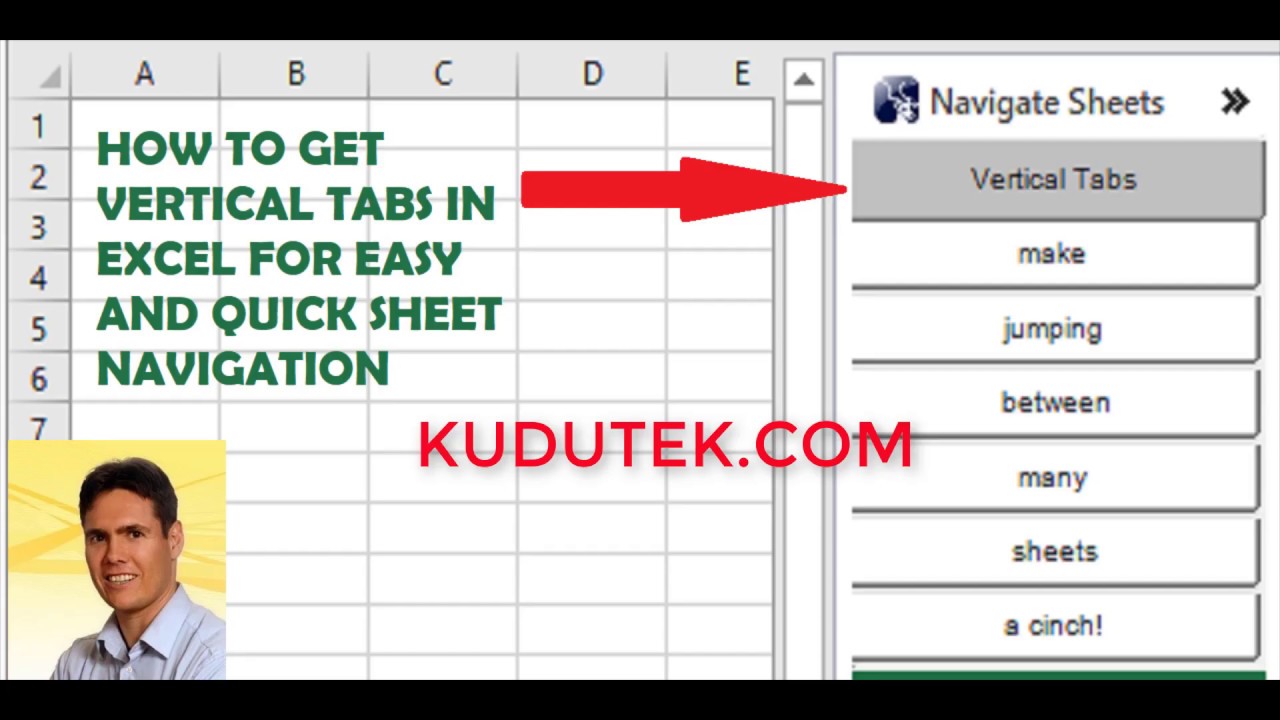
To enable the Excel Vertical Sheet Tabs in Excel, download and install the Excel add-in called XLNavigator here.
Use Excel Vertical Tabs to move between sheets quickly. Be efficient!

XLNavigator is an Excel Add-In to quickly and effortlessly let you navigate worksheets using Excel vertical tabs with minimal scrolling. First of its kind! Try Excel vertical tabs for yourself and you will never want to be without vertical tabs in Excel again!
Learn More about Excel Vertical Tabs
Use Calendar and Date-picker to set and view dates in Excel

XLNavigator is an Excel Add-In to easily and effortlessly let you pick, set and view dates in cells from the calendar.
Use Excel to import a selection of cells into SQL Server

XLNavigator is an Excel Add-In to easily and quickly let you load a selection of cells as a table in SQL Server.
Frequently Asked Questions
Related Excel Navigation & Organization Tools
Master these complementary Excel productivity features to supercharge your workbook navigation:
XLNavigator Add-in Features
- XLNavigator Benefits and Features - Complete overview of vertical tabs, date picker, and SQL Server integration
- Excel Side Tabs in Color - Customize vertical tab colors with preset themes and custom colors
- Resize Excel Vertical Tabs - Adjust vertical tab dimensions and text size using slider controls
Excel Workbook Organization
- Managing Complex Excel Workbooks - Best practices for organizing large workbooks with multiple worksheets
- Hidden and Very Hidden Sheets - Vertical tabs show hidden sheet positions for better workbook structure management
- How to Lock Cells in Excel - Protect worksheet data while maintaining navigation flexibility
Excel Charts & Data Features
- What is an Excel Chart Sheet - Navigate to dedicated chart sheets using vertical tabs
- Excel Date Picker - Calendar control for quick date entry and selection
- Data Intelligence and Visualization - Navigate complex BI workbooks efficiently with vertical tabs
- VLOOKUP Function Guide - Essential data lookup function for multi-sheet workbooks
Beyond Tools: Building Better Workflows
Looking beyond productivity tools? These articles explore the philosophy behind effective workflows:
- Automate the Boring Stuff - Why reducing manual navigation (like clicking through tabs) creates better workflows
- The Productivity Paradox - How the right tools (like vertical tabs) help you do less but accomplish more
- Simple Wins - Why simple solutions like vertical navigation often beat complex alternatives
Official Resources
- Microsoft Excel Navigation Features - Official documentation for Excel navigation and worksheet management
- Excel Add-ins Development - Understanding Excel add-in architecture and COM add-ins
- Excel Productivity Tips - Microsoft's collection of Excel productivity features and shortcuts
Looking for more Excel productivity tools? Check out Excel Date Picker or explore Data Intelligence and Visualization.