
Last Updated: January 15, 2026 | Reading Time: 15 minutes | Video: 3:45
TL;DR: Download the Excel Date-Picker and Calendar here
This article will teach you step-by-step how to install and use the Microsoft Excel Date Picker. Because of the 32-bit limitation and VB code/macro requirement, we will also show you two alternative date picker controls that require no macros and work in 32-bit and 64-bit versions of Excel.

Option 1 (good): Microsoft Excel Date Picker for 32-bit only
Option 2 (better): Randy's workaround method (64-bit compatible)
Option 3 (best): XLNavigator Calendar Date-Picker (all versions)

Continue reading to learn how to install Excel Date Picker Controls that do not require VBA or macros and work with 32-bit and 64-bit versions of Excel.
Microsoft's original Excel Date Picker has two limitations: The date picker control does not work with the 64-bit version of Excel and requires a macro-enabled workbook that can make it impractical.
Table of Contents
- Key Points
- Why is a Date Picker Handy in Excel?
- How to Insert Microsoft Date Picker Control for 32-bit Excel
- How to Make the Microsoft Date and Time Picker Control Pop Up
- Excel Date Picker Code Key Points
- Excel Date Picker for Entire Columns or Specified Ranges
- Insert Date Picker in Excel Workaround Solution Compatible with 64-bit
- Workaround Date Picker Key Points
- XLNavigator Excel Date Picker for All Versions
- Considerations When Choosing the Best Pop Up Calendar
- Frequently Asked Questions
- Closing Remarks
Key Points
- In Excel, the drop-down calendar is called Microsoft Date and Time Picker Control
- The Microsoft date picker control 6.0 (SP6) is not available in the 64-bit edition of Excel
- Use various arrow buttons to change the date, month, and year in the drop-down calendar
- Due to the 64-bit Excel compatibility issue, a workaround Excel Date Picker method is presented later in this article
- Because the preceding Excel Date Picker approach needs a macro-enabled workbook, third-party Excel Date Picker add-ins will be discussed later in this article

Why is a Date Picker Handy in Excel?
A Date Picker can be helpful in Excel for several reasons:
-
Quick date selection - A Date Picker field can help you quickly select a date from a drop-down calendar, making it easy and fast to input dates into your spreadsheet.
-
Data accuracy - Date Pickers can help to ensure that data is entered correctly by only allowing users to select dates from the drop-down calendar rather than inputting dates manually.
-
Error reduction - Hence, an Excel Date Picker Control can help reduce data entry errors.
If you frequently work with dates in Excel, Date Pickers can be a valuable tool to add to your spreadsheet. The drop-down calendar can save you time and help ensure data entry accuracy.
How to Insert Microsoft Date Picker Control for 32-bit Excel
First, make the Developer tab visible
Step 1: Choose Options under the File menu.

Step 2: On the Excel Options dialog box, select Customize Ribbon on the left edge of the dialog box, check the Developer tab's checkbox, and click OK.

Step 3: The Developer tab will now display on the Excel ribbon.

Now insert the Excel date picker
Step 1: Click on the Insert tab in the Controls group and select More Controls from ActiveX Controls (bottom right of the list of controls).

Step 2: Select Microsoft Date and Time Picker Control 6.0 (SP6) from the list and click OK.

Step 3: To create the drop-down calendar in Excel, click any location on the worksheet.

Step 4: Right-click on the date picker control and click Properties from the popup menu.

Step 5: To give the user a shortcut for picking today's date, change the CheckBox value from False to True and close the Properties window.

Step 6: Also, while in Design Mode, right-click on the date picker control and click Properties again to customize the colors and appearance of the Date Picker as needed:


Experiment with the different Calendar sections and colors to customize the calendar's appearance to your liking.
How to Make the Microsoft Date and Time Picker Control Pop Up When Selecting a Date Cell
Step 1: To control Microsoft Excel date picker visibility when clicking on a target cell, we will add some code associated with the worksheet. Under the Developer tab, click on the Design Mode tab.

Step 2: Press Alt + F11 or right-click on the Sheet tab and select "View Code" to open the Visual Basic Editor.

Step 3: Copy and paste the following code in the Visual Basic Editor window:
Option Explicit

Private Sub Worksheet_SelectionChange(ByVal Target As Range)
On Error GoTo ErrExit
  If Target(1).HasFormula Then Exit Sub
  With Sheet1.DTPicker1
    .Height = 15
    .Width = 25
    If Target.Cells.Count = 1 Then
      If IsDate(Target(1).Value) Or IsEmpty(Target(1).Value) Then
        .Visible = True
        .Top = Target.Top
        .Left = Target.Offset(0, 1).Left
        .LinkedCell = Target.Address
      End If
    Else
      .Visible = False
    End If
  End With

  Exit Sub

ErrExit:
  'gracefully handle errors here
End Sub
Excel Date Picker Code Key Points
- The following code will let the Excel Date Picker appear as a drop-down calendar on any selected cell value that has no value or is a valid date value
- The date picker will not show if the selected cell contains a formula or is not a valid date
- All the date cells in the same sheet will be linked to the calendar cell in the above code
- To apply the date picker only on specific cells or columns, replace the line
If Target.Cells.Count = 1 ThenwithIf Target.Cells.Count = 1 And Not Intersect(Target, Union(Range("A2"), Range("B:B"), Range("D:D"))) Is Nothing Then
Excel Date Picker for Entire Columns or Specified Ranges
- Using the "Union" function above, you can specify a specific cell, a particular column, or multiple columns and cell ranges that should link to the Date drop-down Excel date picker field
- In the above Union example, the Excel date picker will only appear on a particular cell "A2" and multiple columns, i.e., entire column "B" and entire column "D"
- So, a linked cell will display a small drop-down control. If the selected cell contains a date format value or has no value, the selected cell will be a linked cell of the calendar control
- Remember to click on the "Design Mode" tab under the "Developer Tab" on the ribbon if the calendar control does not appear or disappear when you click on a particular cell or date column
- You can tweak the existing code to fit your specific needs. That is the beauty of Excel and VBA
- The Excel Date Picker is ideal for data validation to ensure valid and correct dates
- The Date Picker also works with a custom date format
Insert Date Picker in Excel Workaround Solution Compatible with 64-bit
Suppose you must use an Excel Date Picker in a 64-bit edition of Microsoft Excel. In that case, you can employ Randy's alternate popup date picker solution at Excel for Freelancers to show a cell value on a calendar in Excel.
Watch Randy's video explaining how to use his free Excel date picker here.
Workaround Date Picker Key Points
- Randy's workaround solution utilizes a brilliant method of using multiple grouped Excel shapes to form an interactive calendar shape with assigned macros
- Similar to the Date and Time Picker code above, the Calendar shape will appear and disappear and link against selected cells
- This solution does not require selecting any ActiveX controls under the Developer tab, and no file has to be registered
- The popup date picker does require VBA code and, hence, must be a macro-enabled file
- It is surprisingly easy and elegant to use, and one can even change the color scheme of the date-picker calendar
- If you want to include a date picker in your workbook that you want to share with other users that do not depend on external files like the MSCOMCT2.OCX from Microsoft, then this workaround calendar shape method is a good solution
- One caveat is that this calendar date picker does not allow you to change the year from the calendar quickly
- However, with Microsoft's Date Picker, you still have the 32-bit Excel version limitation and potentially need to register the MSCOMCT2.OCX file
- Therefore, you should consider a third-party Excel Date Picker and Calendar tool like the XLNavigator
XLNavigator Excel Date Picker for All Versions of Excel and All Excel File Extension Types
If you are using Excel and are limited to the 64-bit version, or if you are using .xls non-macro workbook files, there is an excellent Excel date picker that you can use. This Excel date picker tool is part of our XLNavigator add-in for Excel. It is an Excel date picker fully compatible with both Excel bit versions and all file extension types.
With this solution, you do not need to install more controls, and no need to follow code examples to make it work. You do not need to be concerned with the developer box, design mode, or date picker Excel.

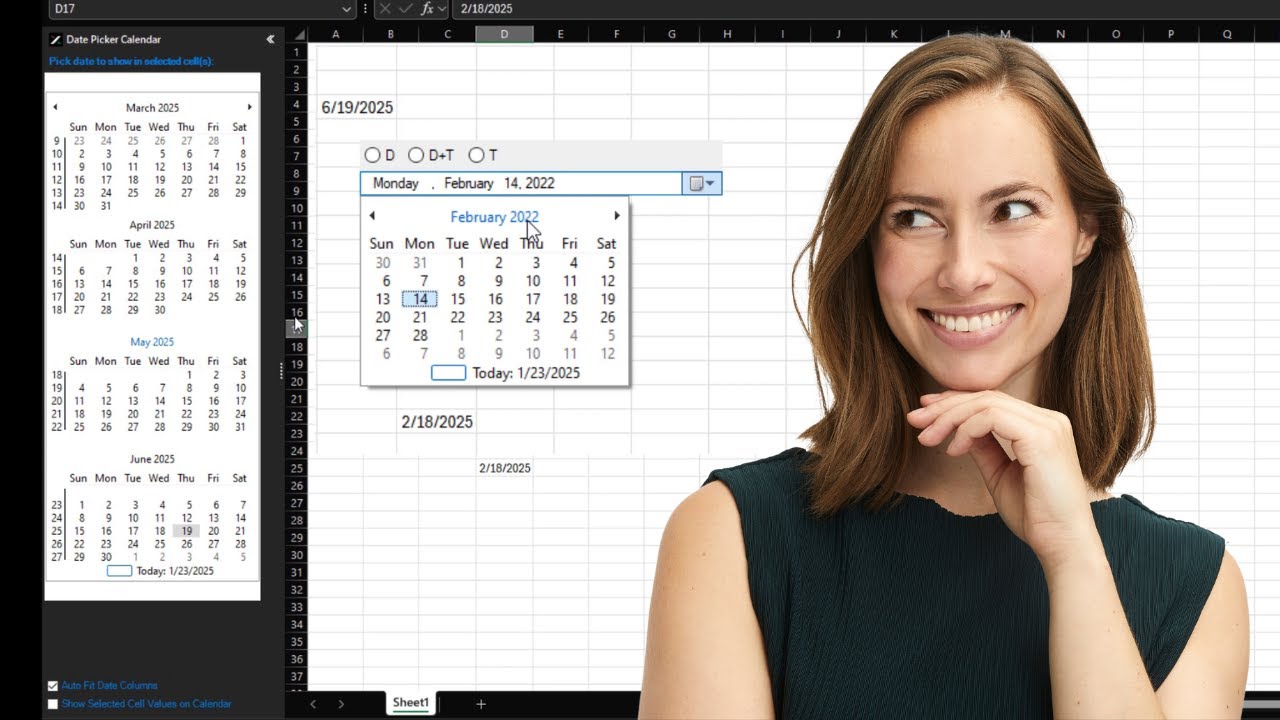
This Excel date picker provides a user interface for selecting dates in Excel, and the Excel date picker displays a calendar in a separate task pane. You can choose dates from the Excel date picker calendar by selecting a date on the calendar.

The excel date picker also supports simultaneously selecting dates for a range of cells.
Selecting a date in a cell will show the exact date on the date picker calendar. The Date Picker Calendar also makes it easy to navigate to different years in the past or future, while the workaround date picker solution above does not.
The Excel date picker is very easy to use, and it is a great way to select dates in Excel when you are limited to using the 64-bit version of Excel or using .xls non-macro enabled workbook files. The date picker will always be available in all your Excel spreadsheets without a version bitness limitation or file type extension and macros. The XLNavigator Excel Date Picker is lightweight, quick, and always ready to use when needed.
If you want to learn more about the XLNavigator Excel date picker or download the Excel date picker, you can go to https://www.xlnavigator.com.
Considerations When Choosing the Best Pop Up Calendar in Excel
Microsoft's Excel Date and Time Picker 6.0 control combined with VBA code is a highly customizable, elegant solution that one can manipulate only to show specific cells, columns, or ranges of cells. The in-cell checkbox that shows in the drop-down selector makes it a snap to apply today's Date without having to display the full calendar and makes it less distracting and obtrusive.
This Excel Date Picker is smooth and responsive and is an elegant solution.
Microsoft's Excel Date Picker cons:
- Excel 32-bit limitation. Although Office 365 can run as a 32-bit version on Windows 64-bit platforms, the default version is 64-bit, requiring extra steps to install the 32-bit version
- Therefore, we should assume that most users these days use 64-bit Excel, which means that you cannot share your Excel spreadsheet with the Microsoft Date and Time Picker with other users
Randy's workaround Date Picker solution, compatible with Excel 64-bit, is an ingenious way to offer users a very familiar date picker experience. This solution allows sharing Excel spreadsheets with other users regardless of their Excel bitness. The option to change the color of the calendar is a nice touch.
Calendar Shape cons:
- This method still requires sharing macro-containing files with other users. Workbooks containing macros pose a security risk and sometimes can be challenging to share in corporate environments
- Randy's Date Picker does not allow the user to change years from the Calendar shape quickly
- Selecting a linked cell with the date picker can make the screen flicker before the calendar picker appears
The XLNavigator Excel Date Picker does not require additional code to manipulate its behavior. Instead, you make it visible on a side pane or hide it when unnecessary. When you select a cell with a value that can convert to a Date, it will reflect that Date on the calendar. The XLNavigator Date Picker Calendar also lets you change the year or month quickly and easily.
XLNavigator cons:
- If you share your workbook with another user, they need to install the XLNavigator app
- The free version of the XLNavigator tool does show some in-app ads
Frequently Asked Questions
How do I determine which Excel date picker method to use?
It all depends on the following questions:
- Do you want to share your spreadsheet with other users?
- Do you want them to have the same popup Excel date picker experience with no action on their end?
- If you wish to share the Date Picker behavior out of the box, will your users likely be on 64-bit Excel?
- Is sharing a macro-containing workbook with your users problematic due to security?
Ultimately, only you can decide on which method to use. I like the Microsoft Excel Date and Time Picker control the best when wanting a user to experience the popup date picker experience I intended. Unfortunately, because Microsoft does not offer this control for 64-bit, that limits you to Randy's workaround Excel Date Picker solution.
If you use the Date Picker Calendar for yourself and want it to always be available like a standard Excel feature, I would say the XLNavigator Date Picker is your best option. A bonus is that this solution includes additional features like Excel Vertical Tabs.
Excel 32-bit versus Excel 64-bit
Excel comes in two versions: 32-bit and 64-bit.
You can install 32-bit or 64-bit Office on a computer with a 64-bit operating system and an x64-based processor.
Here is a great article that explains the differences and reasons to choose between the 64-bit or 32-bit version of Office.
How do I insert the Excel Date Picker into a whole column in Excel?
For the MS Date Picker, you would use VBA to control when and where the date picker will be made available. See the section How to make the Microsoft Date and Time Picker Control pop up when selecting a date cell earlier in this article.
On the other hand, if you use a tool like the XLNavigator Date Picker, it is always shown on the side.
Closing Remarks
Date Pickers are great for data validation to ensure accurate dates, thus eliminating a data validation error message when you enter invalid date values.
Select Microsoft Date Picker if you want complete control over the date picker placement and behavior and if your target users will be using the Excel 32-bit version.
If you want a date picker that always works without being bound to a specific workbook, bit version, or file extension, I would recommend using the XLNavigator Date Picker free version for you and your users.
Related Excel Productivity Tools
If you found the Date Picker helpful, you'll love these other Excel productivity enhancements:
XLNavigator Add-in Features
- XLNavigator Benefits & Features - Complete overview of all XLNavigator capabilities including the Date Picker
- Excel Vertical Sheet Tabs - Navigate large workbooks faster with color-coded vertical tabs
- Easy Excel Side Tabs in Color - Customize your Excel navigation with colorful side tabs
Excel Data Management
- VLOOKUP Function Guide - Master Excel's most powerful lookup function for finding dates and data
- SQL Bulk Update Data with Excel - Import and update dates in SQL Server databases using Excel
- Import SQL Data to Excel - Connect Excel to SQL Server for real-time date and data synchronization
Excel Organization & Best Practices
- How to Lock Cells in Excel - Protect your date cells and formulas from accidental changes
- Hidden and Very Hidden Sheets - Organize sensitive data and templates in your workbooks
- How to Create a Chart Sheet - Visualize date-based data trends with dedicated chart sheets
- Managing Complex Excel Workbooks - Best practices for organizing and maintaining large spreadsheets
Beyond Excel: Building Better Solutions
Looking beyond Excel features? These articles explore the philosophy behind building smarter tools:
- Automate the Boring Stuff - Why automating repetitive tasks like date entry frees you to focus on what truly matters
- Simple Wins - How keeping solutions simple (like a date picker) consistently beats over-engineered complexity
- The Stack Doesn't Matter - Focus on solving real problems (easier date entry) rather than perfect technical choices
Official Resources
- Microsoft Excel Date Functions - Official documentation for date formulas and functions
- Excel Function Reference - Complete guide to all Excel functions including date handling
Ready to boost your Excel productivity? Download XLNavigator to get the Excel Date Picker, Vertical Tabs, and more!